YOUR PHOTO, YOUR BAND ROLE

How to Turn Your Photo into a Tiny Desk-Style AI Video

Use Outstand Studio to put your photo into a short Tiny Desk-style band performance. Start with one portrait, choose your role, and generate a finished clip with a preset performance and matching audio. The browser workflow handles the prompts and video assembly for you.

Make my video
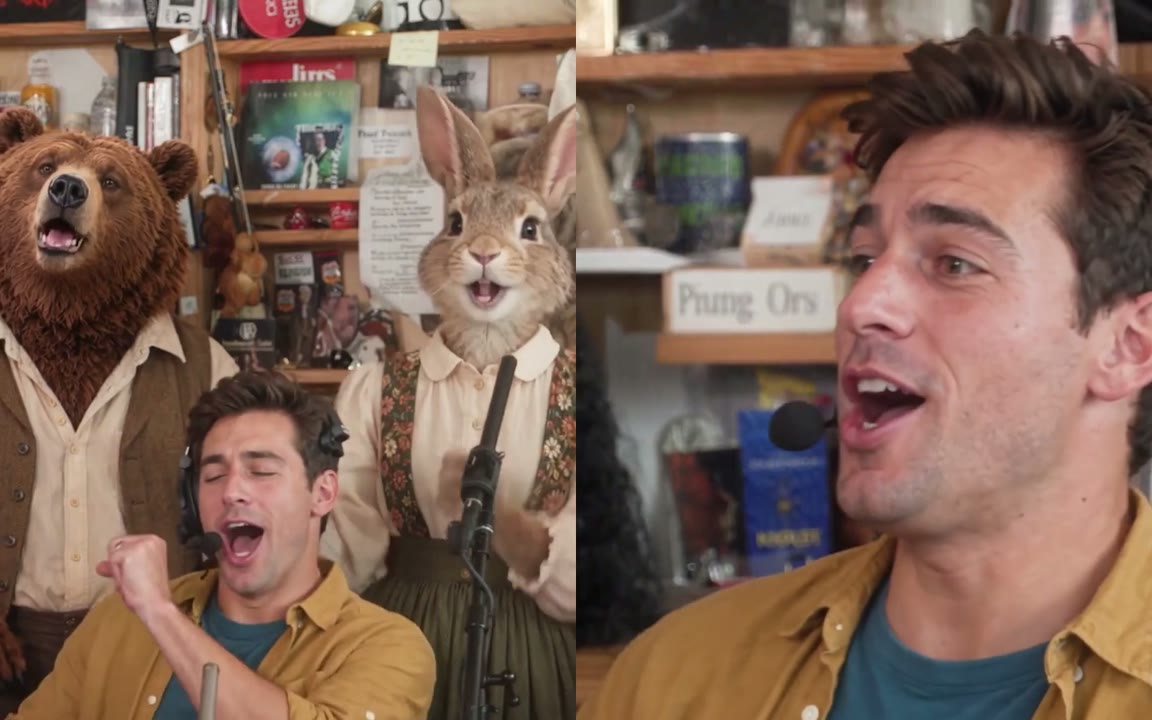
Still from an Outstand Studio generated video showing the band and lead performer
Band and lead-vocal shots from an existing generated video.

From portrait to performance

Five steps to your own clip.

STEP 01

Pick a clear portrait

Choose a sharp, well-lit photo with your face and outfit clearly visible. Give each person their own portrait. A front-facing photo or gentle three-quarter angle makes it easy to see the features you want in your performance.

STEP 02

Choose your place in the band

Open the cast builder and add your photo to Lead, Keys, Back left, Back right or Sax. Start with yourself in one role and keep the ready-to-use cast around you. Add consenting adult friends, pets or original characters to personalize more roles.

STEP 03

Set the length and frame

Choose 8 seconds for the band and lead-vocal moment, or 15 seconds to include the saxophone close-up. Both options are 720p. Use 9:16 for a vertical clip, or choose 16:9, 3:4 or 4:3 to suit your post.

STEP 04

Generate your performance

Check your role assignments, confirm your photo permissions and review the displayed price. Outstand Studio handles the preset performance, shot sequence, matching soundtrack and video assembly. Follow the progress on your task page.

STEP 05

Download and personalize

Watch your finished take and download the video. To add your own music, open the downloaded clip in your favorite video editor, replace the soundtrack, and adjust the audio timing and volume. Add a caption to make the clip your own.

See the finished format

A short band performance, ready to watch.

This existing Outstand Studio example shows the 8-second vertical format. Choose a band role in the cast builder to start your own version.

One photo gets you started

Your portrait defines the appearance of the role you choose. The ready-to-use cast fills the remaining roles, so you can begin with your own face and add friends whenever you prepare a new session.

For the full role list and creative brief, explore the cast and prompt template.

Explore creative workflows

Bring a recorded performance or your own audio.

A custom production can also start with a performance video or an audio track. These tools provide different building blocks for that workflow.

Runway: performance-driven animation

Runway Act-Two takes a driving performance video and a character image or video, then transfers movement and expression. With a character image, gesture control also transfers hand and body movements. This gives creators a way to direct a character through a recorded performance.

Read Runway’s Act-Two guide

Hedra: portrait and audio animation

Hedra Avatar generates character videos from a portrait and an audio track. Its official model page includes singing and vocal performances among its uses. Creators can use that approach for an audio-driven singer shot, then assemble their concert scene in an editor.

Read Hedra’s Avatar overview

Explore the full guide to how AI Tiny Desk concert videos are made, including preset and custom production routes.

Before your first session

Photo-to-video questions.

Can I make a Tiny Desk-style video with one photo?

+

Start with one clear portrait and assign it to your chosen performer. The ready-to-use cast fills the other roles. Add more individual photos to personalize up to five band members.

Do I need video editing skills?

+

The preset generator handles the performance, soundtrack and video assembly. Upload your photos, select your settings and download the finished clip in your browser.

How can I add my own music?

+

Download your generated video, then use your favorite video editor to replace the soundtrack with your own song. Adjust the audio timing and volume to personalize your clip.

How do I choose between a preset and a custom workflow?

+

Choose Outstand Studio for a prepared band scene with your selected cast. Choose a performance-driven or audio-driven workflow when you want to build the character performance and assemble your own scene. The production guide explains each route.